WhatsApp Templates Explained: When and How to Use Them
Master the art of WhatsApp Message Templates to broadcast effectively while staying compliant with Meta's strict anti-spam policies.
Introduction
If you are using the WhatsApp Business API, there is one critical rule you must understand to be successful: The 24-Hour Rule.
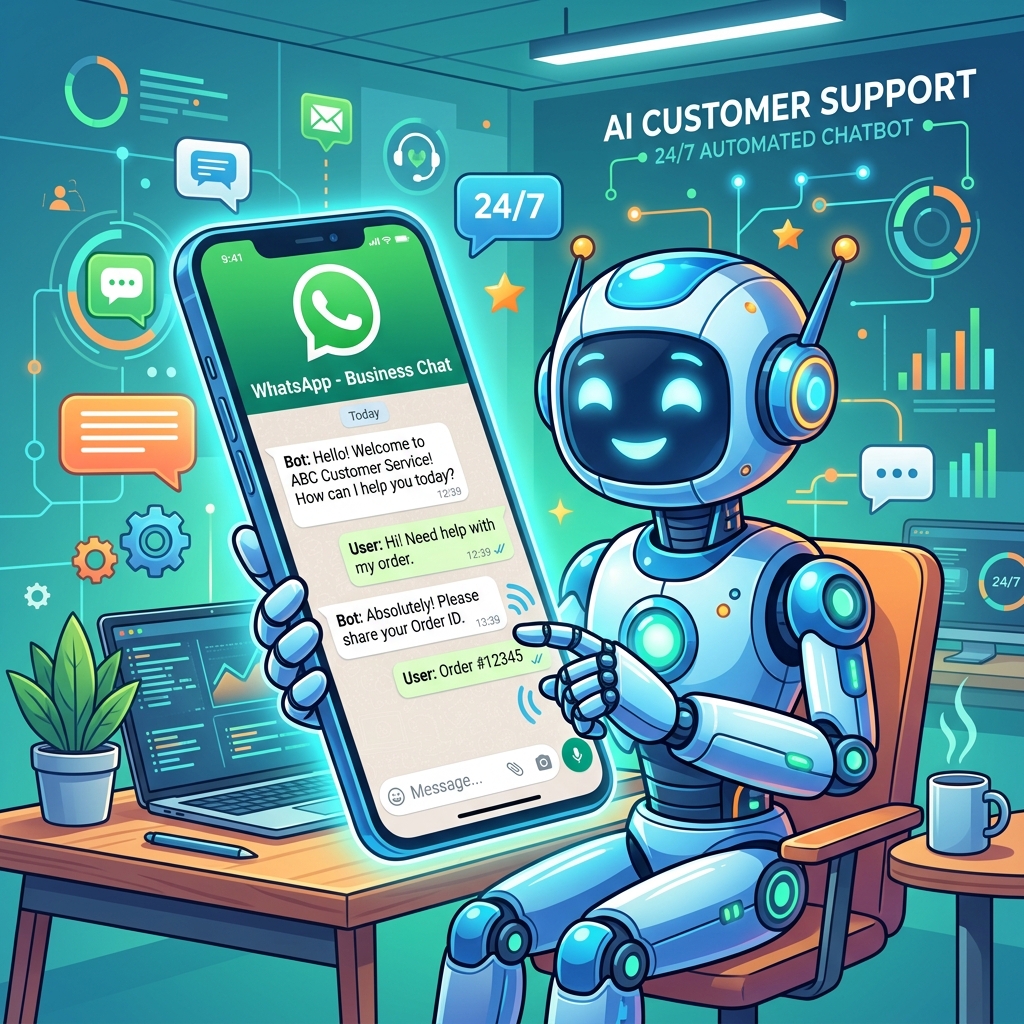
When a customer sends a message to your business, a 24-hour "customer service window" opens. During this time, you can reply with any type of message—freeform text, images, or documents—to help resolve their issue.
But what happens when you want to initiate a conversation with a customer? Or what if you need to reply to a customer, but 25 hours have passed since their last message?
This is where WhatsApp Message Templates come in.
To send a message to a user outside the active 24-hour window, you are required to use a pre-approved message template. This system ensures businesses don't spam users with unwanted content and maintains the high quality of the WhatsApp ecosystem.
What Are WhatsApp Message Templates?
A message template is a highly structured, pre-written message format that you must submit to Meta for approval before you can send it to customers. These templates can include dynamic variables, allowing you to personalize the message for thousands of recipients instantly.
For example, a template might look like this when submitted:
"Hi {{1}}, your order #{{2}} has been shipped and will arrive on {{3}}."
When sent via your CRM or automation tool, the variables are filled in automatically:
"Hi Sarah, your order #9942 has been shipped and will arrive on Friday."
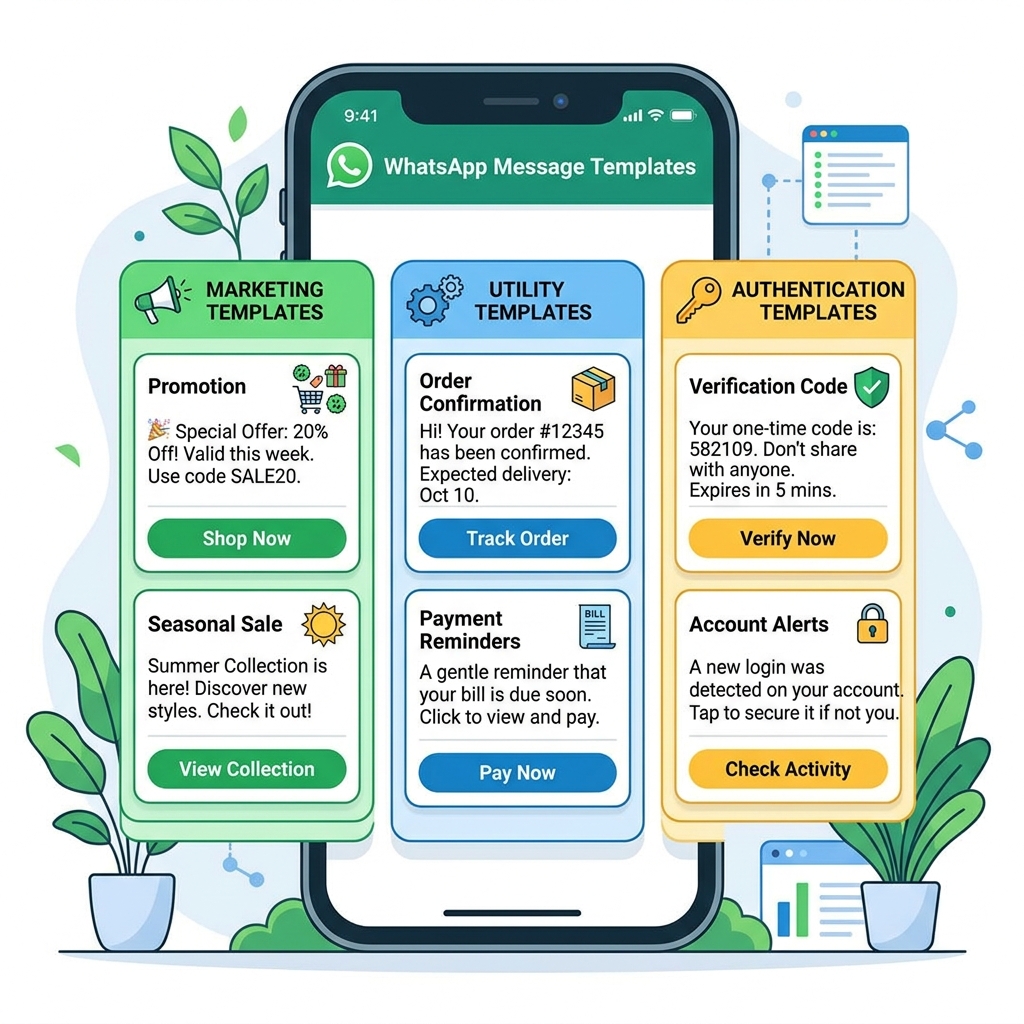
The Three Template Categories
When you submit a template for approval, you must categorize it correctly. Meta uses these categories to determine the pricing of the conversation.
1. Marketing Templates
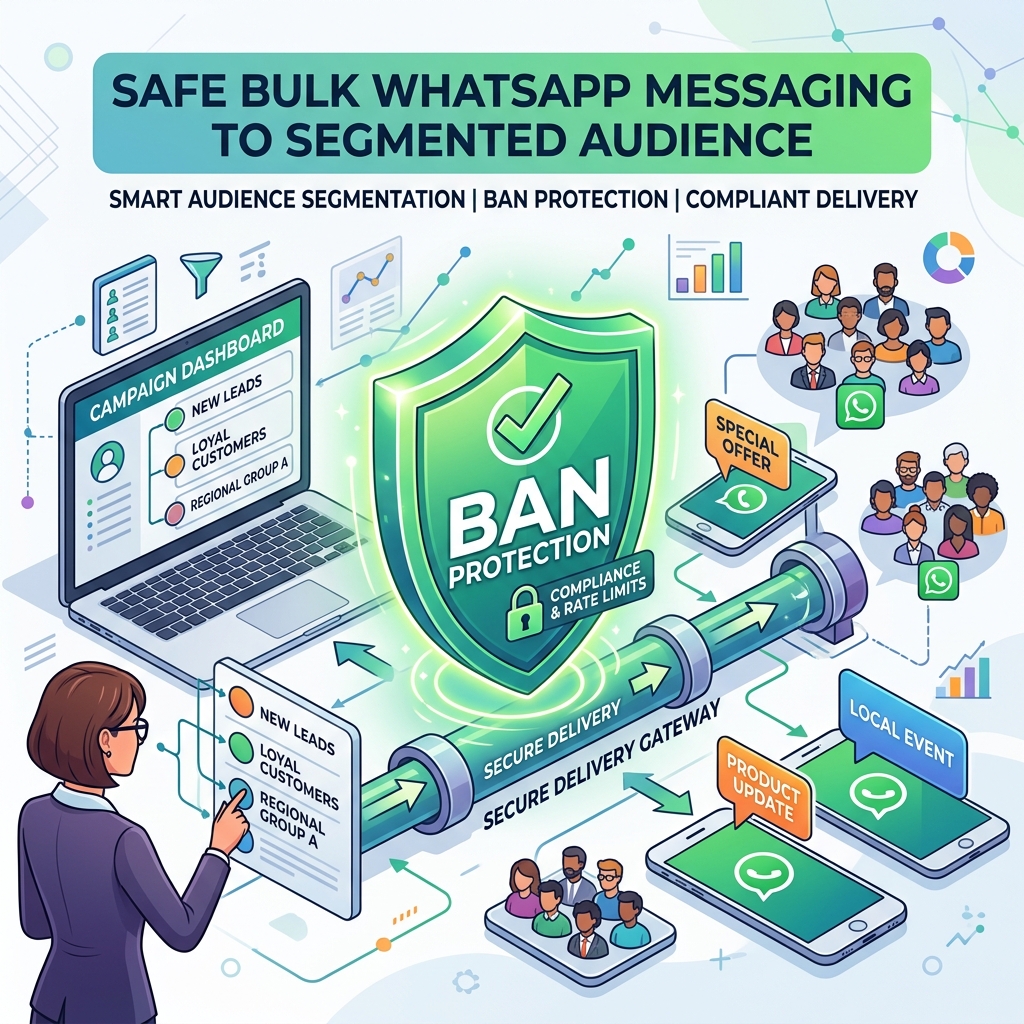
These are used to send promotional offers, product announcements, newsletters, or cart abandonment reminders. They are designed to generate sales and awareness.
Example: "Hi {{1}}, our weekend sale is live! Get 20% off all shoes using code {{2}} at checkout."
2. Utility Templates
These relate to a specific, agreed-upon transaction. They include shipping updates, order confirmations, payment receipts, or appointment reminders. They should not contain promotional language.
Example: "Hi {{1}}, this is a reminder for your dental appointment tomorrow at {{2}}."
3. Authentication Templates
These are exclusively used for sending One-Time Passwords (OTPs) for account verification or password recovery. They must follow a very strict format and cannot include URLs or media.
Example: "{{1}} is your verification code. For your security, do not share this code."
Advanced Features of Templates
Modern WhatsApp templates are incredibly interactive. They are not just plain text; they support rich media and interactive elements that drive engagement.
- Media Headers: You can attach images, PDF documents, or short videos to the top of your template. This is highly effective for sending product brochures or event flyers.
- Quick Reply Buttons: You can add up to three buttons at the bottom of the message (e.g., "Yes", "No", "Talk to Agent"). When a user taps a button, it sends that exact text back to you, triggering your chatbot workflows seamlessly.
- Call-to-Action (CTA) Buttons: You can add buttons that either dial a phone number or open a specific URL (e.g., "Track Order" or "Visit Website").
 }})
Common Reasons for Template Rejection
Getting templates approved usually takes just a few minutes, but they can be rejected if you violate Meta's guidelines. Avoid these common pitfalls:
- Mixing Categories: Submitting a Utility template (like a shipping update) but sneaking in a promotional discount code at the end. Meta will reject it or force it into the more expensive Marketing category.
- Vague Variables: If you have too many variables side-by-side (e.g., "{{1}} {{2}} {{3}}"), the reviewers won't understand the context. Always provide clear sample data when submitting.
- Formatting Errors: Incorrect spelling, grammatical errors, or mismatched brackets will result in instant rejection.
- Policy Violations: Attempting to sell prohibited items (like alcohol, tobacco, or adult products) violates the Commerce Policy and will be rejected.
WhatsApp Template Best Practices Checklist
To ensure high approval rates and maximum customer engagement, follow these guidelines:
- ✅ Keep it concise: Customers scan messages; they don't read essays. Get to the point quickly.
- ✅ Use formatting: Use *bold*, _italics_, and emojis strategically to make the message visually appealing.
- ✅ Always include a CTA: Guide the customer on what to do next using interactive buttons.
- ✅ Provide Opt-outs: In marketing templates, include a quick reply button saying "Stop Offers" to give users an easy way out, preventing them from blocking your number.
Frequently Asked Questions
How long does it take to get a template approved?
Most templates are reviewed by Meta's automated systems and are approved or rejected within a few minutes. Rarely, some may require manual review, which can take up to 24 hours.
Can I edit an approved template?
Yes, but editing an approved template will pause its usability while it goes back into the review queue. It's often safer to duplicate the template, make the edits, and submit it as a new template.
Is there a limit to how many templates I can have?
WhatsApp Business API accounts can store up to 250 message templates per WhatsApp Business Account (WABA). If you reach the limit, you will need to delete old templates before creating new ones.
Final Thoughts
WhatsApp Message Templates are the engine that powers proactive business communication on the API. By understanding how to categorize them, leveraging interactive buttons, and avoiding common rejection pitfalls, you can create highly engaging campaigns that drive real results.
Remember that the goal of a template is to start a conversation. Once the customer replies, the 24-hour window opens, and your sales or support teams can take over with freeform messaging to close the deal!